How to Save Instagram Recipes to Flavorish
November 29, 2024

How to Save Instagram Recipes to Flavorish
Instagram is one of the best places to discover new recipes. Use Flavorish to turn Instagram Reels, food posts, meal-prep ideas, and weeknight dinner inspiration into organized, easy-to-find recipes. Instead of digging through saved posts, screenshots, or bookmarks, Flavorish helps you save Instagram recipes directly to your personal recipe app so you can quickly find, cook, and reuse them later.
Can You Save Instagram Recipes to Flavorish?
Yes. You can save public Instagram posts and Reels to Flavorish by tapping the Instagram share button, selecting your device’s share menu, and choosing Flavorish.
Flavorish works best when the Instagram caption includes the full recipe, ingredients, measurements, or cooking instructions.
Why Save Instagram Recipes to Flavorish?
Instagram is great for finding recipes, but not for cooking from them. Reels, screenshots, DMs, captions, comments, and bookmarks can quickly get lost.
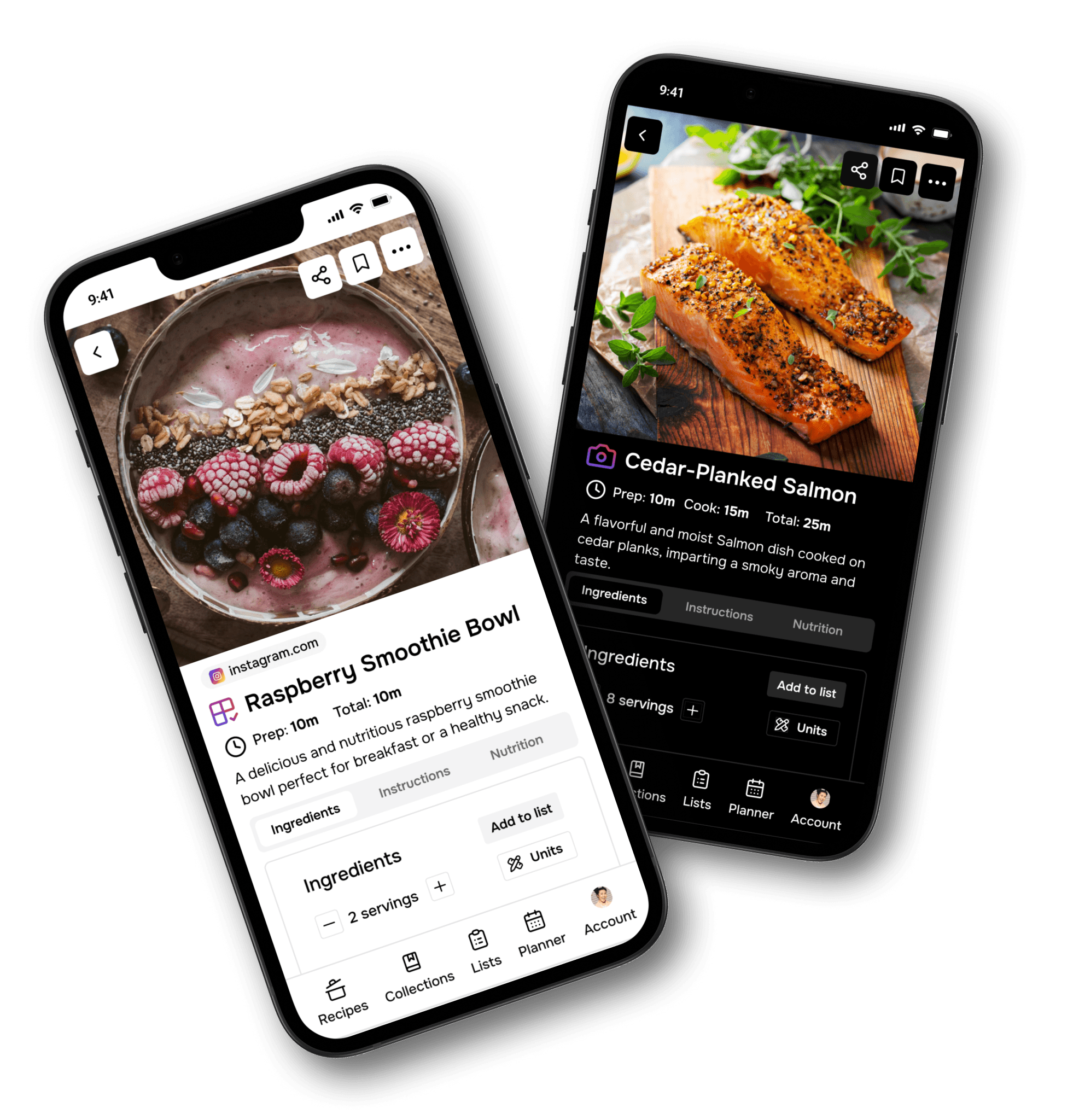
Flavorish keeps everything in one organized recipe app, turning Instagram inspiration into usable recipes with ingredients, instructions, times, servings, source links, and notes; so you can easily find and cook them later.
How to Save an Instagram Recipe to Flavorish on Android
Follow these steps to save a recipe from Instagram to Flavorish on Android:
- Open Instagram: Find a public Instagram post or Reel with a recipe you want to save.
- Tap the share icon: Tap the share icon on the post or Reel.
- Choose “Share”: Select the option that opens your Android sharing menu.
- Select Flavorish: Choose Flavorish from the sharing options. The recipe will automatically save to your Flavorish account.
Alternatively:
- Copy recipe link: Copy the recipe link, paste it into Save recipe from social media feature in Flavorish, and tap Save.

Save an Instagram Recipe on Android
How to Save an Instagram Recipe to Flavorish on iOS
Follow these steps to save Instagram recipes to Flavorish on iOS:
- Open Instagram: Find a public recipe post or Reel you want to save.
- Tap the share icon: Tap the share button on the Instagram post or Reel.
- Select Flavorish: Choose Flavorish from the sharing options. The recipe will automatically save to your Flavorish account.
- Don’t see Flavorish? Follow the steps mentioned at the end to add Flavorish as favorite share option.
Alternatively:
- Copy recipe link: Copy the recipe link, paste it into Save recipe from social media feature in Flavorish, and tap Save.

Save an Instagram Recipe on iOS
How to Add Flavorish to Your iPhone Share Menu
If you save recipes often, adding Flavorish to your iPhone favorites makes the process faster.
- Tap the Share button on a recipe post, link, or video.
- Scroll to the right and tap More.
- Tap Edit in the top-right corner.
- Find Flavorish.
- Tap the + button.
- Drag Flavorish toward the top of your favorites list.
- Tap Done.
Now Flavorish will appear more quickly when you share recipes from Instagram, Safari, Chrome, TikTok, YouTube, Facebook, and other apps.

How to Add Flavorish as a favorite share option on iOS.
Important Note About Instagram Recipe Imports
Flavorish works best when an Instagram post includes clear recipe details like ingredients, measurements, cooking steps, times, servings, or full instructions in the caption, video, or audio.
If details are missing, Flavorish may use AI to suggest a recipe based on the available context. You can always review and edit it after saving.
Best Practices for Saving Instagram Recipes
To get the best results when saving Instagram recipes to Flavorish, choose posts that include as much detail as possible. Look for Instagram recipes with:
- A complete ingredient list
- Measurements
- Step-by-step instructions
- Cooking temperatures
- Timing details
- Serving size
- Creator notes
- Helpful caption details
The original Instagram source link is saved in Flavorish. So this is helpful if you want to revisit the creator’s post, watch the technique again, check comments, or credit the original source.
What Happens After You Save an Instagram Recipe?
After you share an Instagram recipe to Flavorish, the app helps turn it into a cleaner, more usable recipe format. Depending on the post, Flavorish may help capture or generate:
- Recipe name
- Ingredient list
- Instructions
- Prep time
- Cook time
- Servings
- Source URL
- Notes
From there, you can organize the recipe in your collection and come back when you are ready to cook.
Why Flavorish Is Better Than Saving Instagram Posts
Saving an Instagram post isn’t the same as saving a recipe. Saved Reels and posts can still be hard to find, search, and cook from.
Flavorish turns scroll-stopping Instagram recipes into easy-to-follow recipes with ingredients, instructions, and nutrition information. You can also use meal planning and grocery lists to plan a week of meals and make grocery runs easier.
FAQs About Saving Instagram Recipes
Can I save Instagram recipes to Flavorish?
Yes. You can save public Instagram posts and Reels to Flavorish using your iPhone or Android share menu.
Can I save Instagram Reels recipes?
Yes. If the Reel is public, you can share it to Flavorish and save it as a recipe.
What is the best app to save recipes from Instagram?
Flavorish is designed to help you save, organize, and use recipes from Instagram and other platforms like TikTok, YouTube, Facebook, food blogs, and recipe websites.
Does Flavorish work if the Instagram caption does not include the full recipe?
If the full recipe is not included, Flavorish may use AI to generate a suggested recipe based on available details. You should review and edit the recipe before cooking.
Can I save Instagram recipes on iPhone and Android?
Yes. Flavorish works with the share menu on both iPhone and Android.
The next time you find a recipe on Instagram, do not leave it buried in your saved Reels. Share it to Flavorish and save it in one organized place. Download Flavorish on iOS or Android and start building your personal recipe collection today.